TipCronum Work Tasks
 Notes
 Projects
 Next
Getting Things Done (GTD) in Cronum Work: the five steps, tool by tool
How to apply David Allen's GTD method in Cronum Work: capture in one inbox, clarify each item, organize next actions by context, review every week and choose what to do today. Where each step goes in Tasks, Notes, Projects and Next.
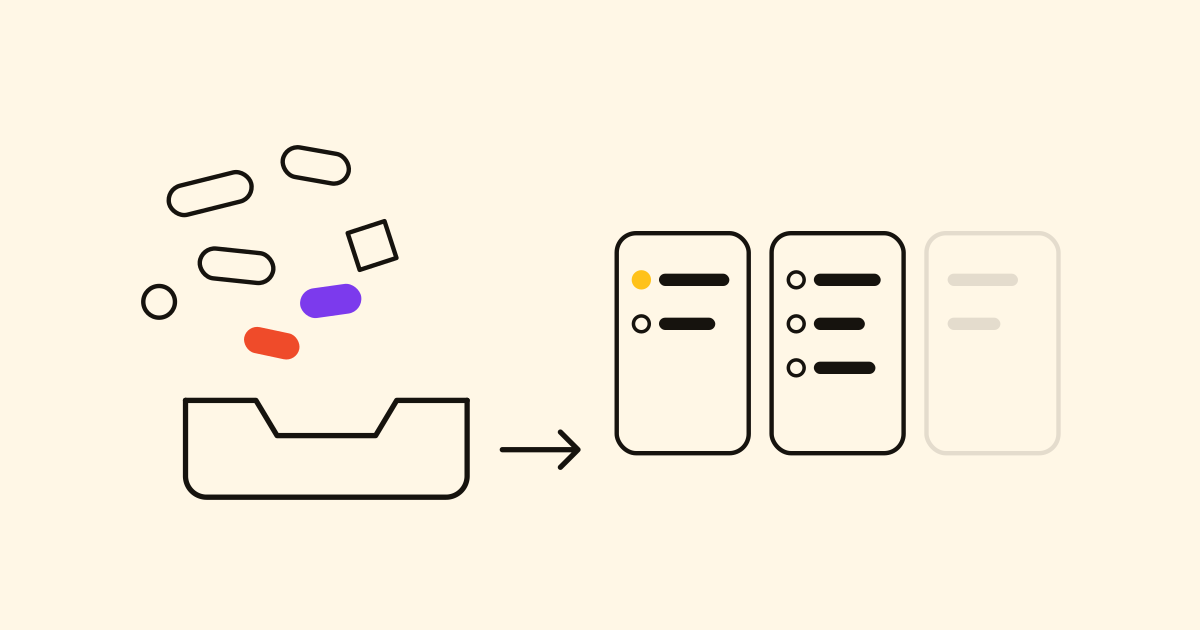
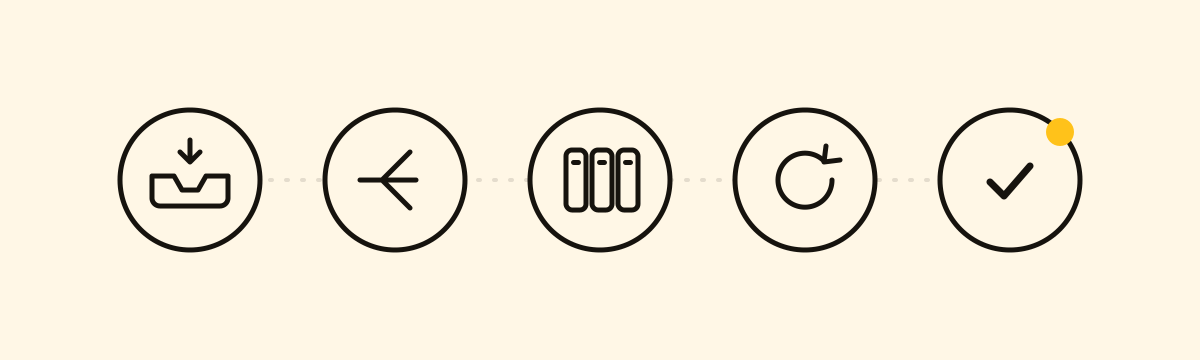
GTD, David Allen's method, starts from one idea: your head is for having ideas, not for holding them. Everything goes into a system you trust, and you decide what to do by looking at lists, not by remembering. Its five steps fit Cronum Work's four modules like this.
1. Capture
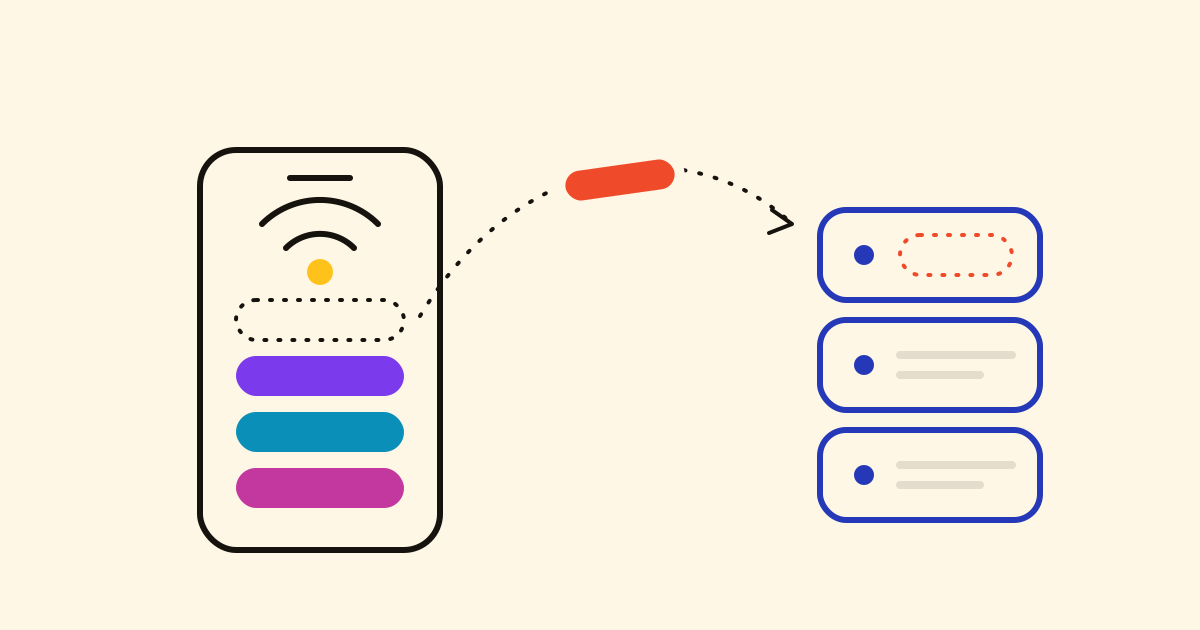
Everything goes into one inbox, in seconds. In Notes, a quick note lands in the Inbox. On your phone, a long press on the app's icon offers New note, straight into the same Inbox. With your AI connected, say it out loud:
Put in my Inbox: call the accountant about the quarterly VAT.
2. Clarify
Go through the Inbox one item at a time and ask: is it actionable?
- No: move it to its notebook as reference, or delete it. If it's "one day, maybe", it goes to a Someday list.
- Yes, in two minutes or less: do it now.
- Yes, one step: a task in Tasks. On a checklist line, Send this line to Tasks makes the task with a link back to the note.
- Yes, several steps: it's a project.
3. Organize
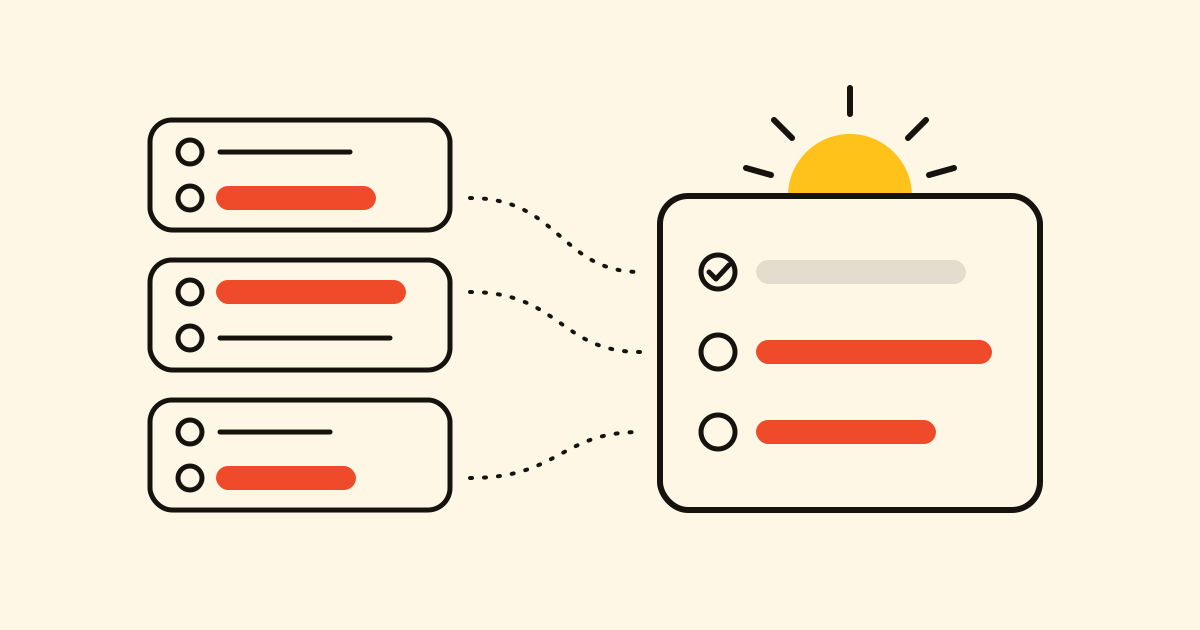
- Next actions by context: a group in Tasks (New group) with one list per context: Calls, Computer, Errands, Home.
- Projects: small ones in Next, where each project carries its next step, just what GTD asks of each project; those with dates and dependencies in Projects.
- Waiting for: a Waiting for list, with the day you'll chase it as the due date.
- Calendar: only what has to happen on a given day. Due dates from Tasks and Projects meet in the calendar.
- Someday/Maybe: a list that stays out of your daily views: in List settings, turn off Appear in My Day and Appear in Important.
- Reference: notebooks in Notes, in groups by area.
4. Reflect
Once a week, empty the Inbox, go through every list and make sure every project in Next has a next step you could start today. Twenty minutes is enough.
5. Engage
Each morning, pick from your context lists what you'll do today and tap the sun to add it to My Day (plan your day with My Day). Star the one or two that matter most: they wait in Important.
Start today: empty your head into the Inbox, and clarify it tomorrow morning.