Guide Tasks
Plan your day with My Day, Tomorrow and Important
In Tasks, My Day gathers what you'll do today from all your lists, Tomorrow lets you line it up the evening before, and Important keeps your starred tasks in one place. How each one works, and a short morning routine.
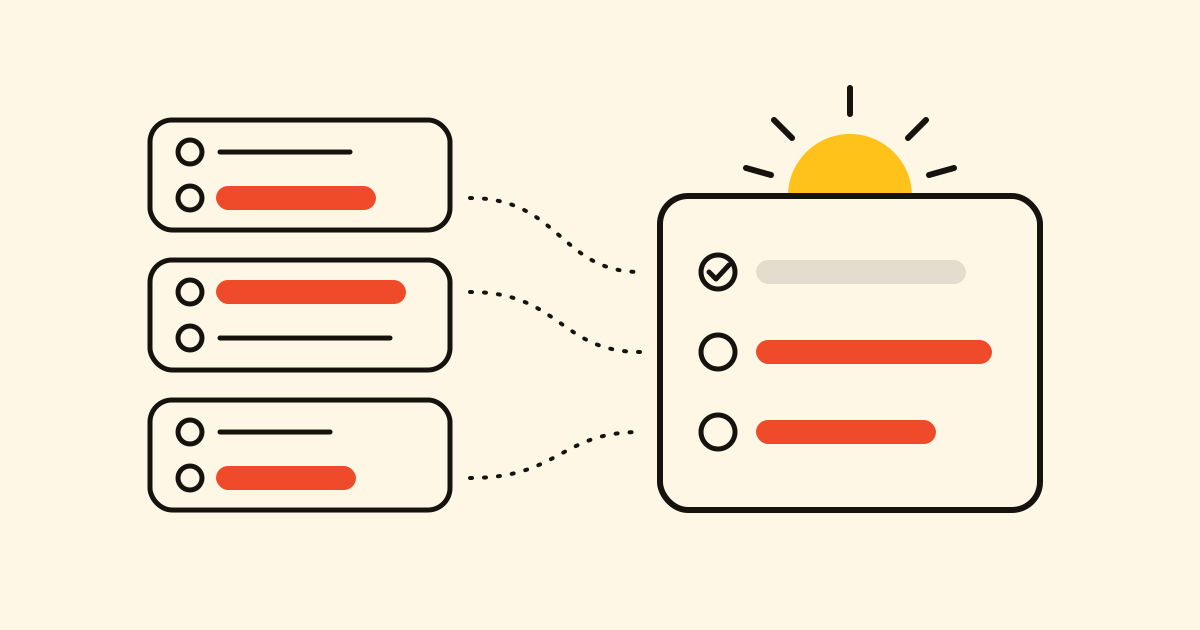
Your tasks live in several lists: work, home, a project. In the morning you want one short list of what you'll do today. In Tasks, My Day builds it from all your lists, Tomorrow prepares it the evening before, and Important keeps the starred tasks together.
My Day
- Tap the sun on any task (Add to My Day) and it joins today's list without leaving its own. On your phone, a long swipe right does the same.
- Below what you picked (For today), My Day also shows what's Due today and what's Overdue, so a due date brings a task there by itself.
- What you add inside My Day goes to your default list, already in My Day.
- Every morning it starts empty: the sun marks go, and the tasks stay in their lists.
Tomorrow
- Open a task from any list: its My Day row has No, Today and Tomorrow. Choose Tomorrow, and when the day comes the task is in My Day by itself.
- In the Tomorrow view, what you add is planned for tomorrow, and the sun on a task due tomorrow plans it too (Plan for tomorrow).
- Tomorrow shows what you Planned, then what's Due tomorrow.
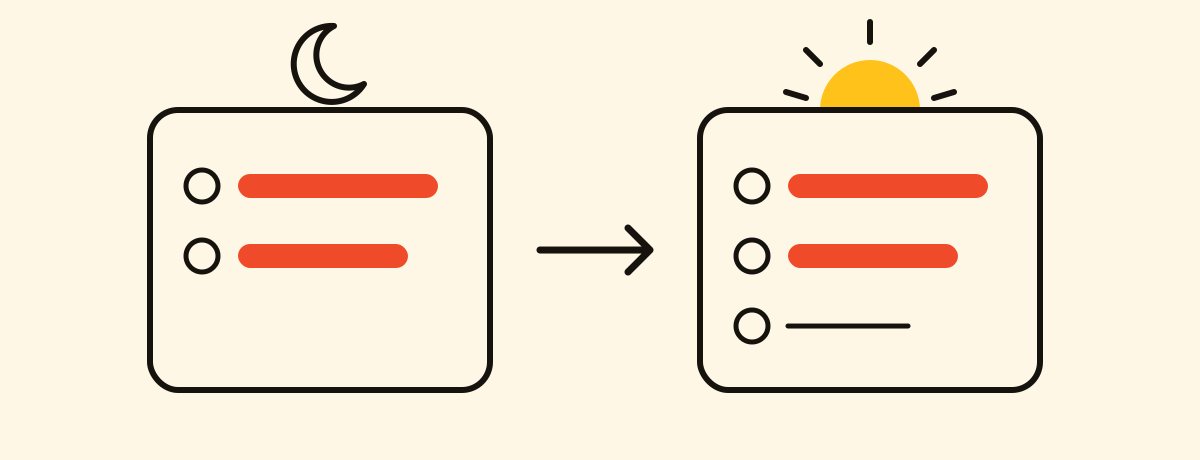
What you didn't finish
What you planned for today and didn't complete stays in My Day tomorrow, and in its list. The switch is Carry over unfinished tasks, under My Day in Tasks' Settings; a list like the shopping can turn it off for itself in List settings.
Important and Next 7 days
- Star a task (Mark as important) and it shows up in Important, with the starred tasks of all your lists. Completing a task takes its star off.
- Next 7 days is an agenda of everything due this week, with what's overdue first. To see it next to your projects and daily notes, use the calendar.
- A list that doesn't belong in these views, such as the shopping, can stay out: in List settings, turn off Appear in My Day or Appear in Important.
A morning routine
- Open My Day: what you planned yesterday is there, with what's due today.
- Go through Overdue: do it today, or give it a new date.
- Open Important and tap the sun on the one or two starred tasks that matter today.
- Before you stop, add what comes next in Tomorrow, or choose Tomorrow in a task's My Day row.
With your AI assistant
With an AI assistant connected to Cronum Work, you can plan out loud:
Plan the call to the plumber and the budget review for tomorrow.
What's in My Day, and what's still starred?