NewsCronum Work Tasks
 Notes
 Projects
 Next
Invite people who don't have a Cronum Work account yet
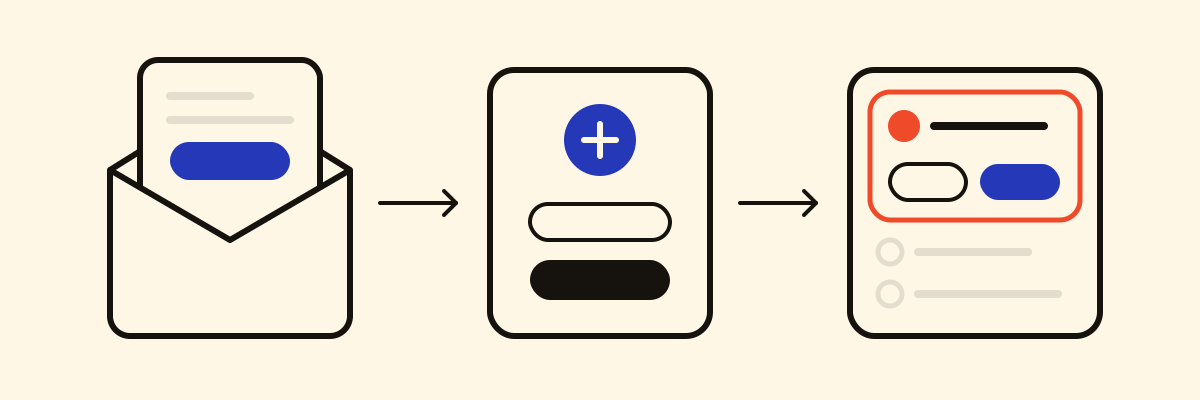
Share a list, a notebook or a project with any email address. Someone without an account gets an email with Create account and accept, and finds the invitation waiting when they sign up.

You want to share the shopping list with someone who has never heard of Cronum Work. Type their email in Share as you would for anyone: if they have no account, they get an email to make one, and the list is waiting for them inside.
What they get
- An email with your name and the list's, Ana invited you to the list “Shopping”, and one button: Create account and accept. It's written in your language, since theirs isn't known yet.
- They create the account with that same address and land in the module, with the invitation there to accept or decline. Until they accept, they see only its name and who sent it.
- The invitation waits under their address until they sign up, or until you take it back.
- The email goes once from you: invite them to something else and it waits for them too, with no second email. Each one carries a link to block more invitations.
What you can share this way
- Tasks: a list, with Can edit or Read only, like the shopping list.
- Notes: a note, a notebook or a group of notebooks, to read or to edit. A group also brings the notebooks you put in it later.
- Projects: a place in the team, as Manages, Can edit or Read only (see planning a project).
- Next: a project, Read only to follow it or Can edit to log steps on it too.
Everything shared, in Settings
In Tasks and Notes, Settings › Sharing lists what's Shared by you and what's Shared with you, invitations still to answer first.
- On yours, switch each person between Can view and Can edit, or stop sharing with them. Whoever hasn't answered yet shows Hasn't accepted yet.
- On theirs, Accept or Decline an invitation, or Leave what you no longer need.
Your AI invites too
With an AI assistant connected, ask:
Share the shopping list with sam@example.com, so Sam can edit it.