 Notes
 Tasks
Quick actions on the Cronum Work icon: a new note or a new task in one press
Press and hold the Cronum Work icon on your iPhone or Android phone and choose New note or New task. It opens straight on a blank note in the Inbox, or on My Day ready to type.
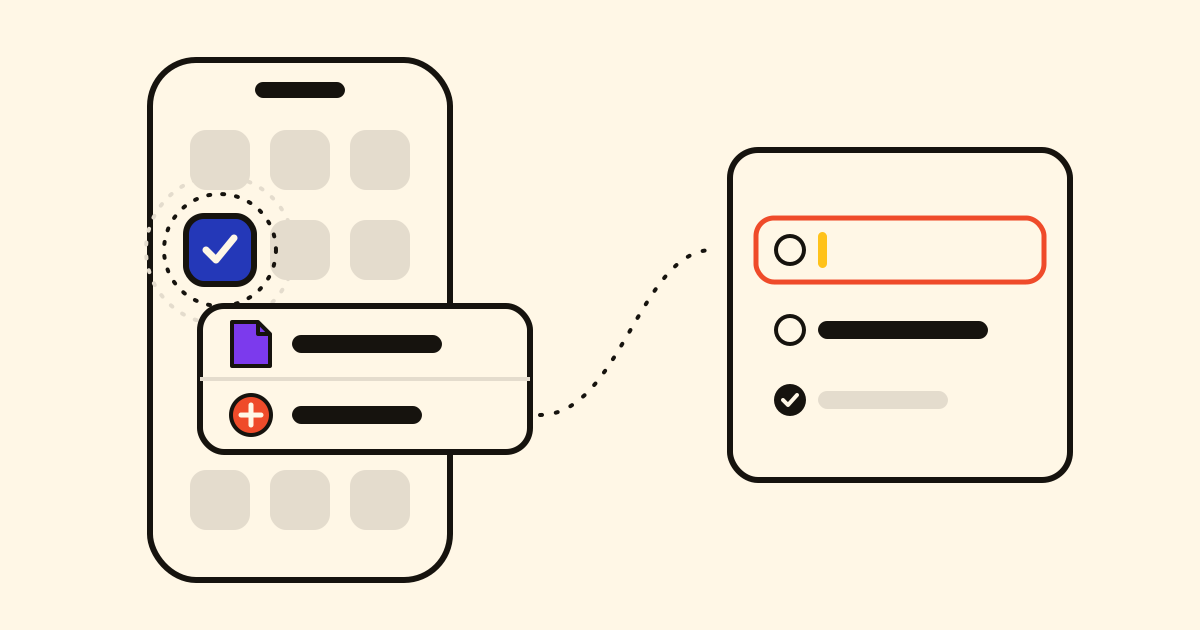
An idea doesn't wait while you look for the right screen. Now you can press and hold the Cronum Work icon on your phone's home screen and start writing it down at once.
Two actions
- New note opens Notes on a new note in the Inbox.
- New task opens My Day in Tasks, with the cursor already in the bar to add one.
Where
- In the Cronum Work app for iPhone and Android, named in your phone's language. They're there from the first time you open the app; if you're signed out, it asks you to sign in and then opens the page.
- On Android or a computer with Work installed from Chrome or Edge, the icon already offered the same two, named in English.
- Work added to an iPhone's home screen from Safari doesn't offer them: they come with the app.
- They're on every plan, Free included.
It's the quickest way to capture, the first step of GTD.
Press and hold the icon and choose New task.