Guide Tasks
A shopping list app sorted by aisle, that learns what you buy
Tasks files each item under its aisle, in the order you walk the shop, suggests what you usually buy and reads "200 g ham" as you type. How to set it up and share it with the household.
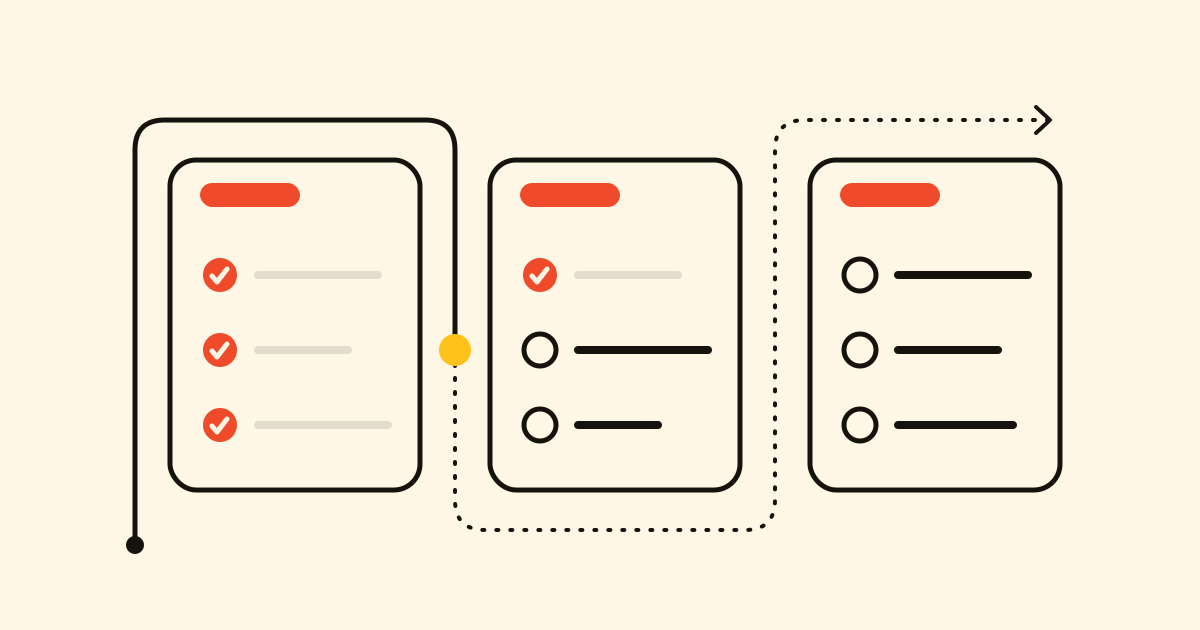
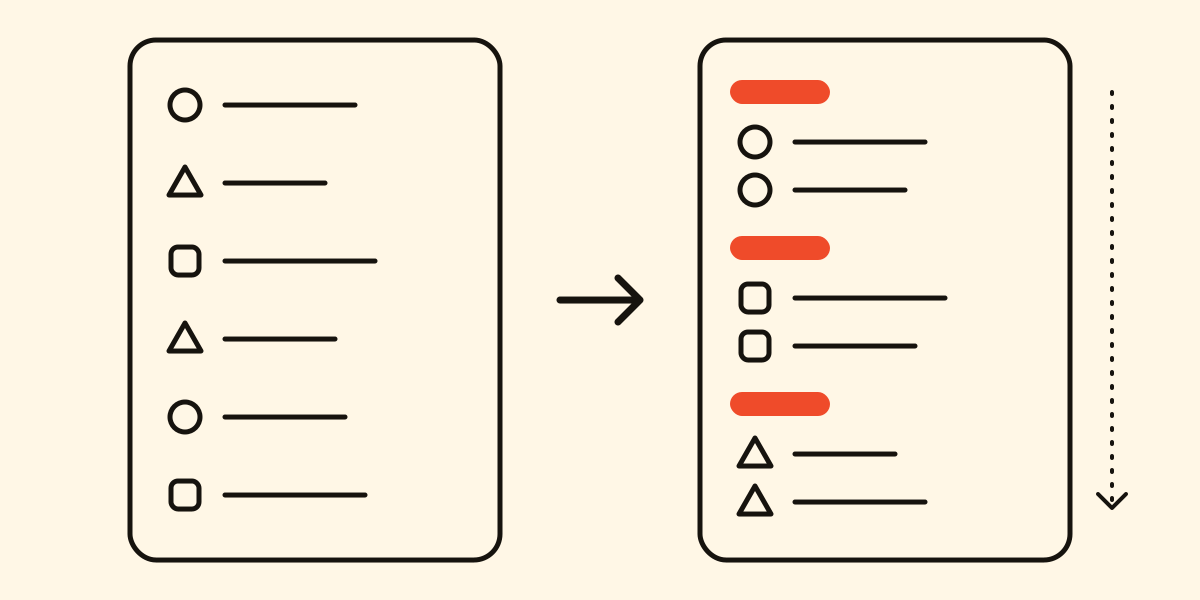
On paper, the milk is at the bottom of the list and the dairy aisle is already behind you. In Tasks, each item falls into its aisle and the aisles follow your route, so you read the list from top to bottom and never double back.
Set it up
- Use the Shopping list your account already has, or choose New list and, under Start from a template?, pick Supermarket.
- It comes with the shop's sections (Produce, Bakery, Meat, Dairy & eggs, Pantry, Frozen, Cleaning…) and around 245 everyday products filed under them. No dates, notes or priorities.
- In the list's menu, choose Categories and move each one with the arrows until they follow your route: fruit and veg by the door, dairy and frozen at the far end. Leave Sort by name off.
- In List settings, turn on Units and Ask for the category.
Supermarket is one of 23 templates; others are for the hardware store, the pharmacy, moving house, a trip or a wedding.
While you add
- Suggestions: type "co" and coffee is there. What you buy most comes first, then the template's products. You can forget a suggestion you no longer want.
- Quantities: with Units on, "200 g ham" or "ham 200 g" becomes ham with 200 g beside it; "1.5 kg potatoes" becomes potatoes, 1.5 kg.
- New products: add tahini and Tasks asks Where does “tahini” go? with your sections to choose from. Answer once and next time it goes straight to Pantry. Anything you've bought before goes back to its section by itself.
Share it with the household
- Share in the list's menu invites by email, each person with Can edit or Read only.
- A bubble with a name shows who added each item. To hide it, turn off Show who added each task.
- Changes show up live on every phone: when your partner ticks off the eggs, you see it from the next aisle.
- Notifications come grouped ("Laura added 3 items"), never about your own changes. Each person can mute a list from its menu.
In the aisle
- On your phone, swipe left to delete, with undo. A short swipe right stars an item, a longer one adds it to My Day.
- No signal in the basement: Tasks works offline and sends what you ticked off when you're back online.
Ask your AI
With an AI assistant connected to Cronum Work, you can add things typed or out loud while your hands are full. Each item lands in its aisle, and the list's name can be approximate:
Add milk, bread and eggs to the shop list.
Before you leave the house, it looks at what you've bought before and tells you what's missing:
What do I usually buy that isn't on the list?
Tasks is one of the four modules of Cronum Work, and the Free plan is enough to start.