GuideCronum Work
How to connect Claude, ChatGPT or Gemini to your tasks, plans and notes
One connector lets Claude, ChatGPT, Gemini or a coding agent read and change your real tasks, plans and notes in Cronum Work. The steps for each assistant.
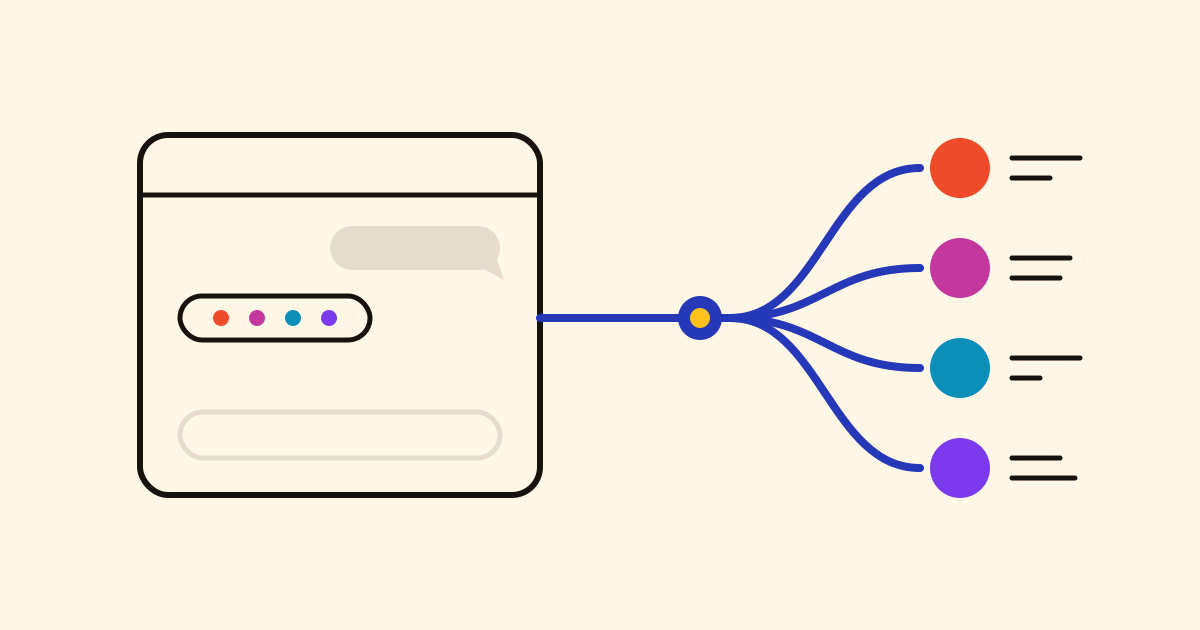
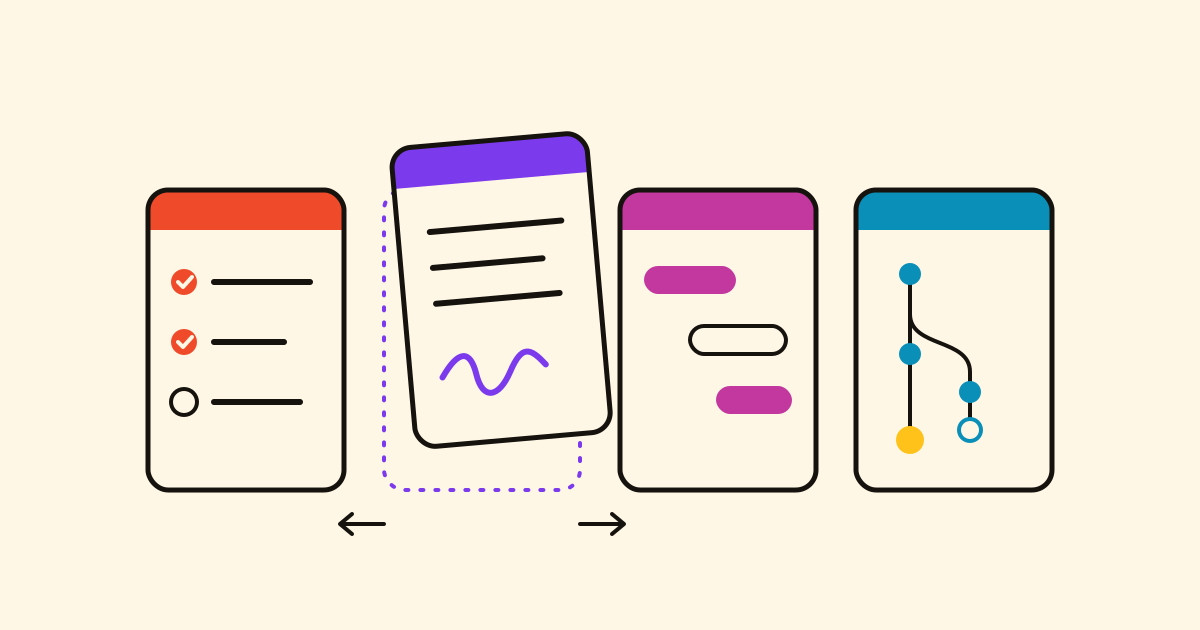
Ask an AI assistant what you have on this week and it can only guess; ask it to move a deadline and nothing moves. A connector lets it read and change your real tasks, plans and notes, with your permission, from the chat you already use. Cronum Work has one connector for its four modules: Tasks, Projects, Next and Notes.
What you need
- A Cronum Work account: the Free plan is enough.
- An assistant that takes custom connectors (MCP servers): Claude, ChatGPT, Gemini or a coding agent. Some only allow them on paid plans.
- The address, the same for everyone:
https://work.cronumstudio.com/mcpThe first time it's used, you sign in to Cronum Work and allow access. No password or key goes into the chat.
Claude
- In Claude, open Settings › Connectors and choose Add custom connector.
- Name it Cronum Work and paste the address above.
- Choose Add, then Connect, and sign in with your Cronum Work account.
ChatGPT
- In ChatGPT, open Settings › Apps › Advanced settings and turn on Developer mode.
- Back in Apps, choose Create, name it Cronum Work and paste the address.
- Keep OAuth as the authentication, create it and sign in with your Cronum Work account.
Gemini
- In Gemini, open Settings › Connected apps and choose Add a custom app.
- Paste the address and sign in with your Cronum Work account when it asks.
Coding agents
In a terminal, add it as a remote server over HTTP. For Claude Code:
claude mcp add --transport http cronum-work https://work.cronumstudio.com/mcpThen type /mcp in Claude Code, choose cronum-work and sign in. For Codex, Gemini CLI, Cursor and VS Code, copy the command or use the one-click button in the step by step on Cronum Work's page.
Last step: tell it when to use it
Connected, the assistant can use Cronum Work but doesn't know when: say "I need to buy coffee" and it may just agree. Copy the short prompt in Cronum Work's Settings › Your AI (or the last step on Cronum Work's page), paste it into the chat once and let the assistant save it as a standing instruction. From then on it adds to-dos to Tasks, checks Projects before answering, logs progress in Next and keeps notes in Notes.
Try it
Add milk, coffee and bin bags to the shopping list.
What's blocking the shop refit?
I haven't touched the podcast in over a week. Where was I?
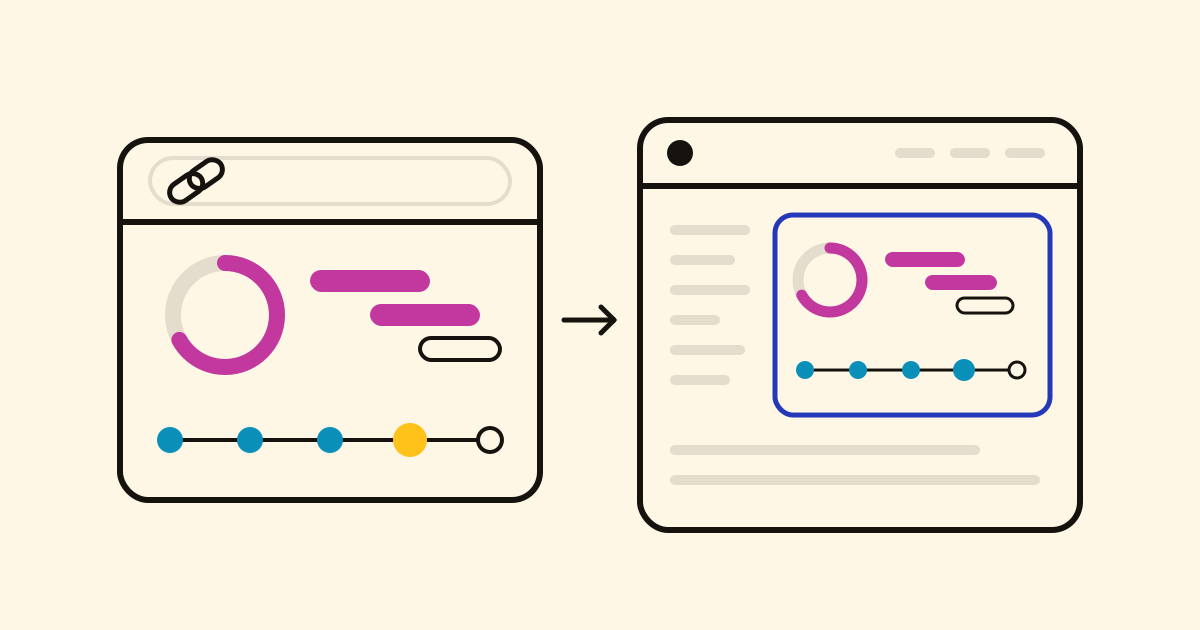
Each change shows up at once in Cronum Work, on your phone and your computer.
You stay in control
- Before moving dates in a plan, the assistant shows what would change and waits for your OK. The new dates are calculated by Projects, not made up.
- Settings › Your AI › Connected applications lists every assistant with access. Disconnect one and it stops at once.
- An assistant says it's no longer authorised? Disconnect it and connect it again from its own settings.
Stuck? See the support page.