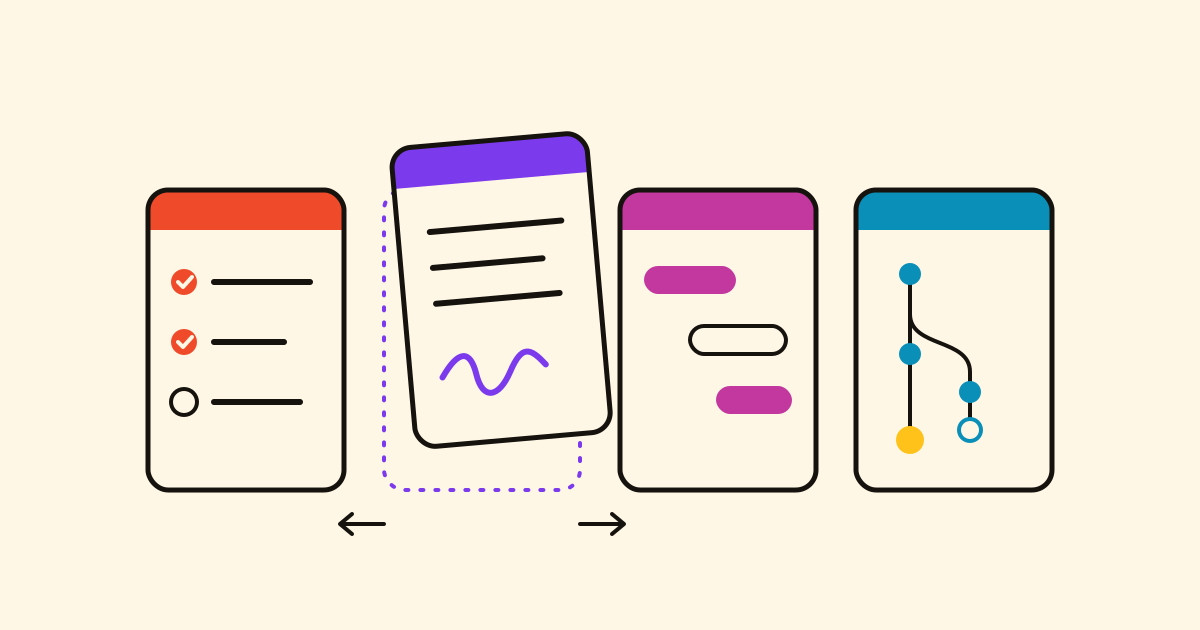
 Tasks
 Projects
 Notes
One calendar for everything with a date: tasks, projects and daily notes
Cronum Work's Calendar shows the due dates from Tasks, the projects, phases and milestones from Projects and the daily notes from Notes on one page, and you can tick things off there.
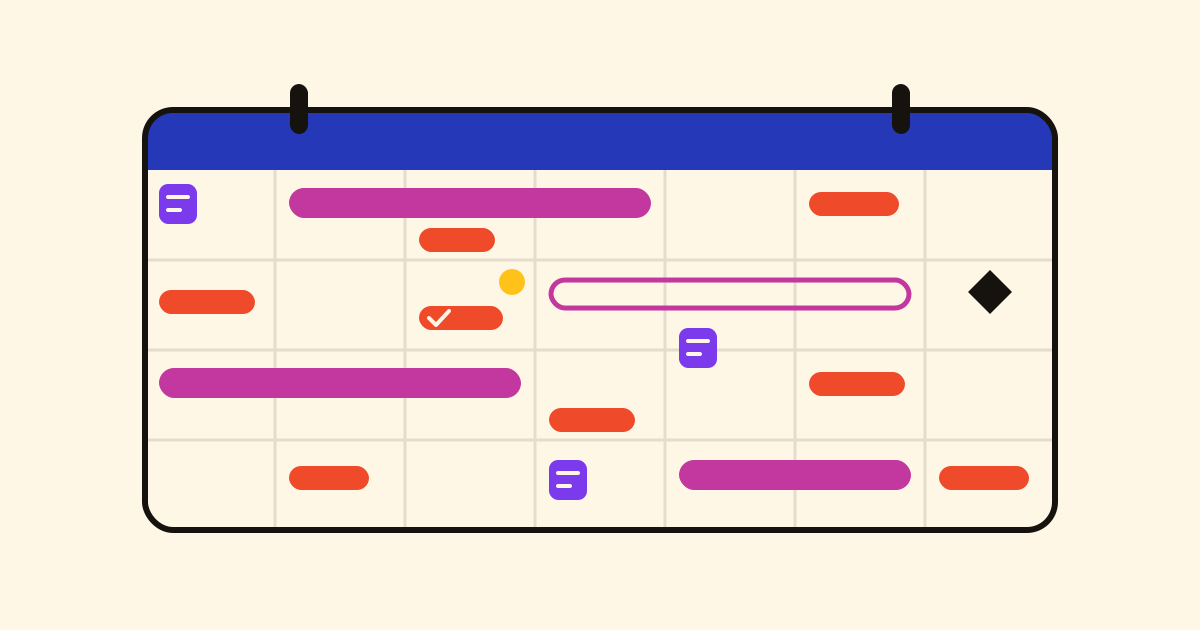
The invoice is due on Wednesday in Tasks, the client sign-off is a milestone in Projects, and the notes from Thursday's call are in Notes. Cronum Work's Calendar puts everything with a date, from every module you use, on one page.
What's on it
- From Tasks: every task with a due date.
- From Projects: projects, their phases and tasks, and milestones, each across the days it spans.
- From Notes: your daily notes, on their day.
Open it with the Calendar button on the side rail, or in the top bar on a phone. Under each title you see where it lives (a list, or a project and phase), so you know which Send the quote it is.
Views and filters
- Month to see what's coming, Week to plan the next few days, Today to come back to now. On a phone it's an agenda: one day after another in a list you scroll.
- Under What to show, turn each module on or off: hide Notes to see only deadlines.
- Only mine shows just what's assigned to you in a shared project; Show done brings back what's finished.
Change it from the calendar
Click anything and a card opens: tick Done, fix the Title, move the Due date or the Start and End, add a line to the Notes. A daily note can be edited right there.
A phase takes its dates from its tasks, as everywhere in Projects: move its tasks and the phase follows. For more than the card, Open in Projects (or Tasks, or Notes) takes you to the item in its module.
The calendar isn't a copy: a task finished on your phone, a milestone moved in Projects or a teammate's tick in a shared project shows at once, on every device.
Ask your AI
If you've connected an AI assistant to Cronum Work, it reads the same dates across the modules, from your real lists, plans and notes:
Is anything due in Tasks on the same days as the shop refit's milestones?
I've got a free afternoon on Thursday. What's due by Friday that I haven't done yet?
Not set up yet? The steps are on Cronum Work's page. To build a plan with phases and dependencies for the calendar to show, follow this guide to planning a project.