NewsCronum Work
Cronum Work: Tasks, Projects, Next and Notes, now in one app
Tasks, Projects, Next and Notes are now one app: up to four windows side by side, with one account, one sign-in, one Settings and one connector for your AI.
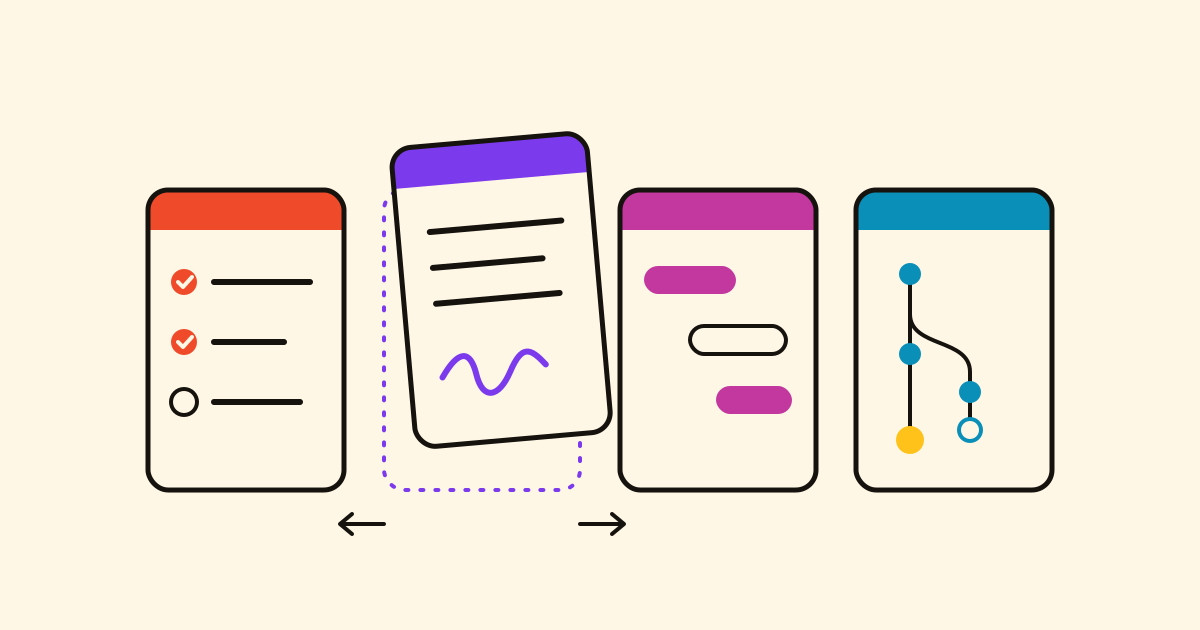
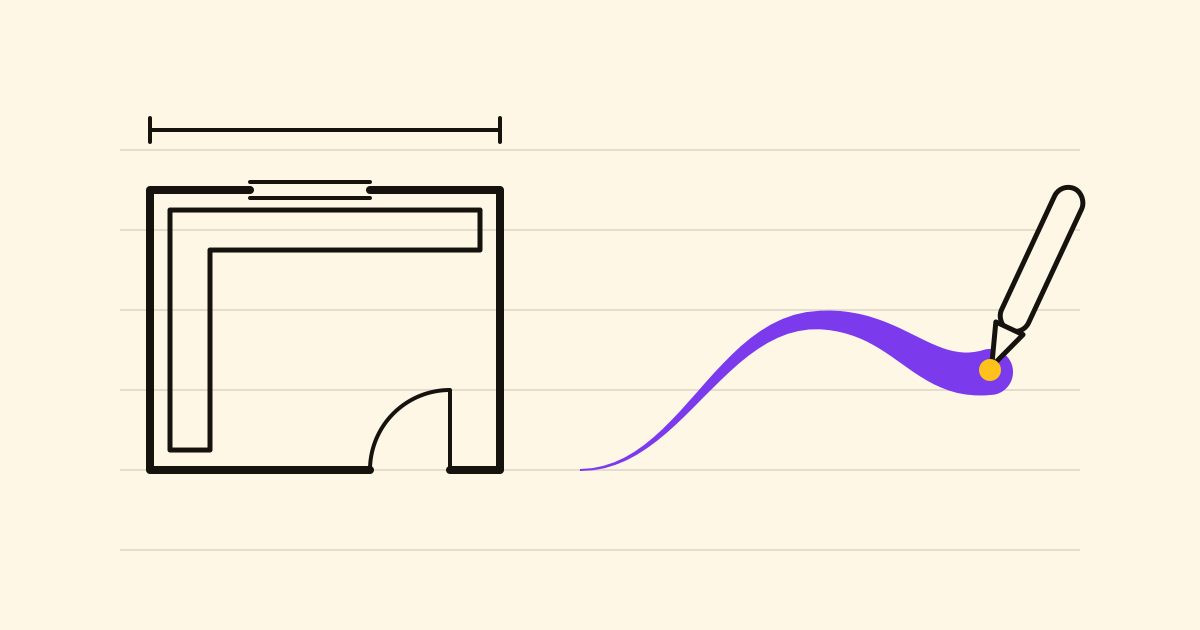
A shop refit: the plan in one tab, the snag list in another, the builder's call notes in a third. Now Tasks for lists, Projects for plans, Next for progress and Notes are one app, Cronum Work, with one account, one sign-in and one connector for your AI.
Up to four windows side by side
One module per window, in one, two, three or four columns, or a two-by-two grid.
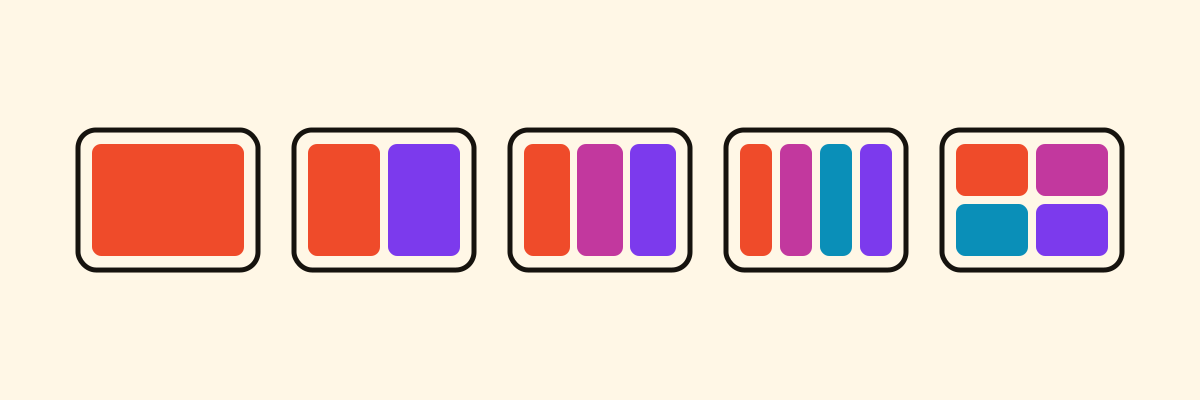
- Drag a window by its header and the others make room.
- Drag the divider between two windows to change their width or height.
- Double-click a header to fill the desk with that window; again to put it back.
- Alt and an arrow key move the active window.
Each device keeps its own layout. In a narrow browser, columns stack instead of dropping modules. The address keeps the view, so a reload, bookmark or shared link opens the same windows.
Linked items open next door
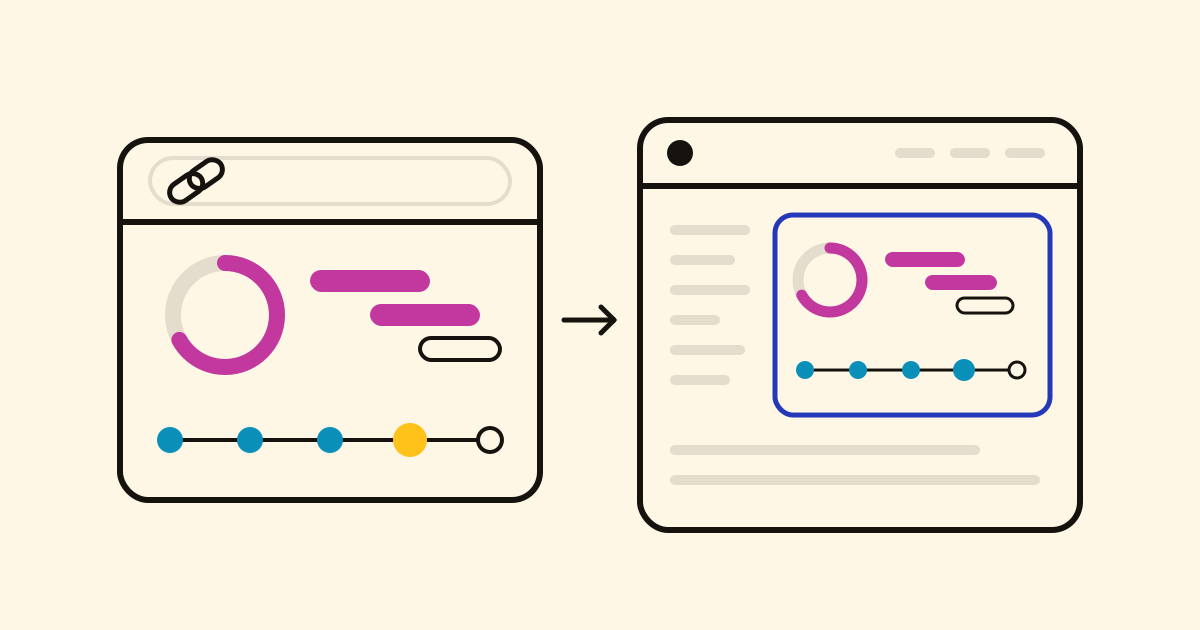
Open a note linked to a task and it opens in the Notes window beside your list; the back button returns you. See how links work, and one calendar for everything with a date.
On your phone
Modules become tabs at the bottom; swipe sideways for the next one. Installed from the browser, on phone, tablet or computer, it gets its own icon and opens on the module you used last.
Only the modules you use
In Settings › Modules, turn on the ones you use and drag them into your order, on all your devices. Turning one off keeps its data: it only leaves your menus.
One sign-in, one Settings, one plan
Sign in once, with email, Google or Apple. One Settings covers everything, from any module. One plan covers all four, and the Free plan has every module: see pricing.
One connector for your AI
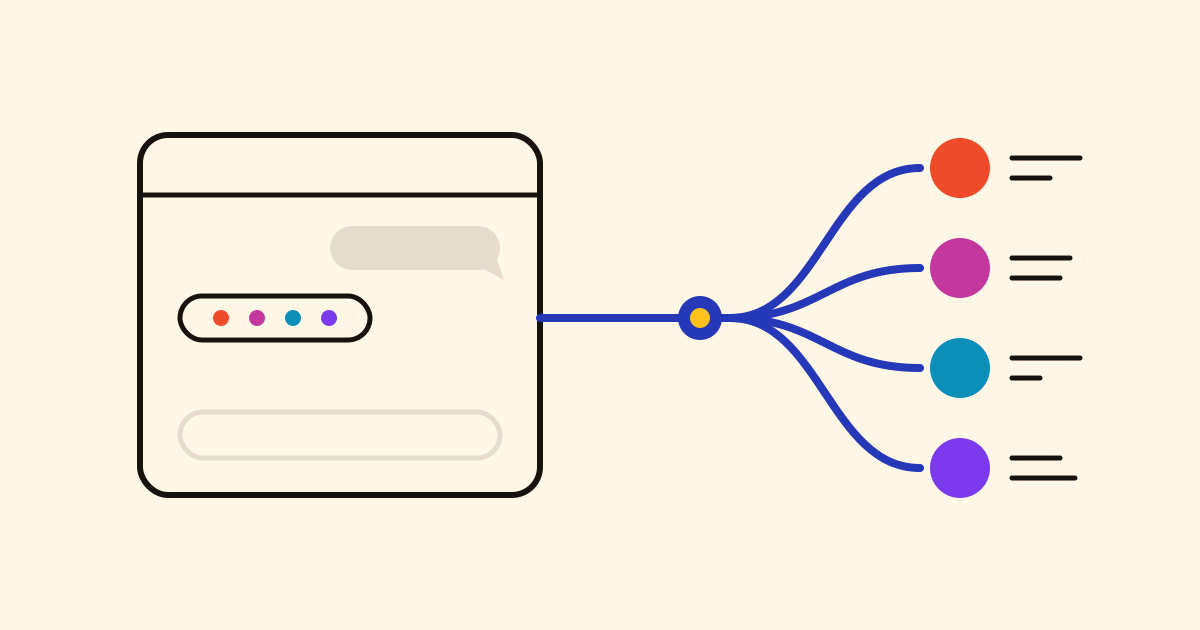
Connect Claude, ChatGPT or another assistant once, at one address: it can use all four modules, link things across them and read what has a date. What it changes appears at once in your open windows.
What needs me this week?
Put the builder's call notes in Notes and link them to the shop refit.
Set it up in a couple of minutes: connect Claude, ChatGPT or Gemini, or follow the steps for each assistant.
Picking up a project that went quiet? Start with Next: pick up any project where you left off.