Guide Notes
How to keep meeting notes you can still find a month later
Keep meeting minutes in Notes with every decision under the same heading, find it with search, and ask your AI assistant "what did we decide?" to get the answer and the note it comes from.
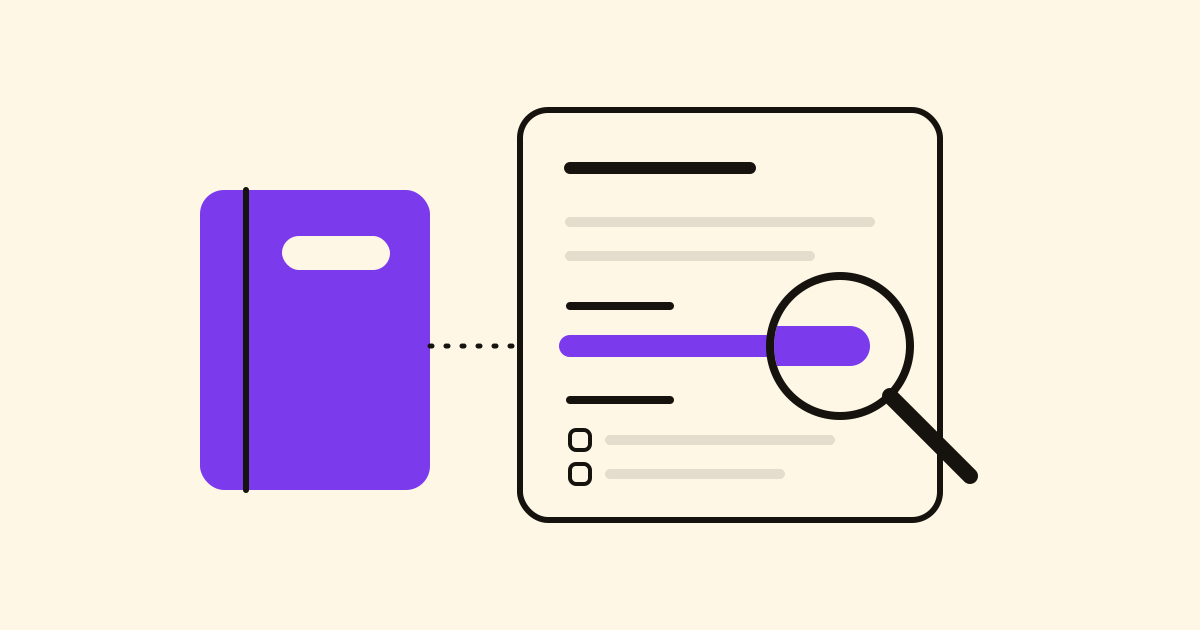
A month after a meeting, nobody can find what was decided: it's in a paper notebook, a chat or notes final 2. Keep the minutes in Notes, every decision in the same place, and you, your team and your AI assistant find it again.
One template, one notebook
- Template: in a new, empty note, under Start from a template:, pick Meeting minutes: today's date in the title and the headings Attendees, Agenda, Notes, Decisions and Next steps, the last one a checklist.
- Other templates: Project brief, Retrospective, Journal, or your own with Save as template. Templates are part of Pro; on Free, type the five headings or let your assistant write them.
- Notebooks: one per client or recurring meeting (Harbour & Co, one note per call), in a group (Clients).
- Tags for what crosses notebooks (supplier, budget), unseen by those you share with. Pin keeps the note you reopen most at the top of its notebook and in Pinned.
Decisions made outside meetings
Today opens the daily note, created with the date in your Inbox: one line for each "yes, go with the cheaper boxes" in the corridor. It also shows on its day in the calendar (one calendar for everything with a date).
Search
Search reads the whole text of every note, ignores accents and matches word starts: pack finds packaging and packed, highlighted in the note. Filters work alone or with words, and offline on the notes on your device:
packaging notebook:Harbour
tag:supplier is:pinned
decided group:Clients
Ask your AI
With your AI assistant connected, paste a transcript or rough notes:
Write up the minutes of today's Harbour & Co call from these notes, in its notebook, with attendees, decisions and next steps.
A month later:
What did we decide about the packaging supplier?
It answers with the decision and the note it comes from, such as "Northfield, agreed on 3 November, in Harbour & Co: Week 45", which you can open to check. It adds to notes without rewriting them, and never overwrites a note that changed since it read it.
Next steps become tasks
Put the cursor on a checklist line and choose Send this line to Tasks: it becomes a task in Tasks with a link back to the note, so whoever does it sees why. Your assistant can do it too (link tasks, notes, projects and steps).
Nothing written is lost
- Earlier versions shows who changed the note and when (how long depends on your plan); Mark the changes shows words added in green, removed struck through.
- Bring this one back restores a version; the text it replaces is kept as a version too.
- If someone changed the note while you were writing, your text is saved apart, not overwritten.
Share the notebook
Choose Share…, type an email, pick Can edit or Read only: they always see the latest minutes, no attachments. Share a group and they also get notebooks you add to it later.
See everything Notes does on its page.